

Color Functionalities in CorelDRAW
From RGB and CMYK color management to fills, outlines, fountain gradients, palettes and PowerClip masking - a practical tour of every color tool that matters, with the shortcuts that make them fast.
Color is the emotional core of every design, and CorelDRAW treats it that way. The application ships with a robust color management system that supports both RGB and CMYK modes, allowing designers to tailor their work for digital screens or print output. The RGB model is additive - built from light, and therefore ideal for vibrant on-screen visuals - while CMYK is subtractive, built from ink, and optimized for accurate color reproduction on physical prints. On top of that engine sit the everyday application tools: applying colors is refreshingly intuitive, because left-clicking a color swatch applies it as a fill, and right-clicking the same swatch sets it as an outline.
The two fastest color moves in CorelDRAW: left-click a swatch to fill the selected object, right-click a swatch to color its outline. One click each - no dialog required.
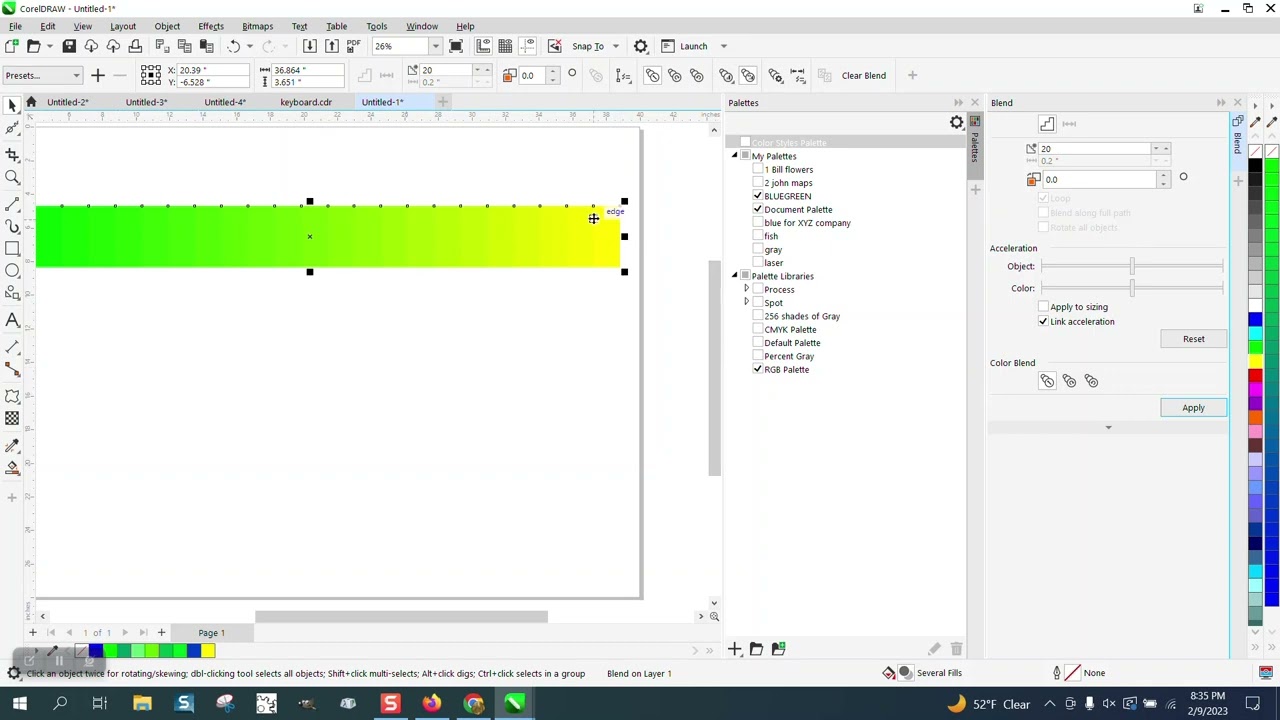
1. Essential Colour Functionalities in CorelDRAW
CorelDRAW's dual-mode architecture means one program can faithfully serve two very different destinations. Choose RGB when your artwork will live on monitors, phones, web pages and presentations; its additive nature mixes red, green and blue light to produce intensely bright color that screens love. Choose CMYK when the artwork will meet ink on paper - cyan, magenta, yellow and black pigments subtract light from white paper, which is exactly how presses reproduce color. Because the two gamuts differ, professional designers decide the destination first and let it drive every color decision that follows.
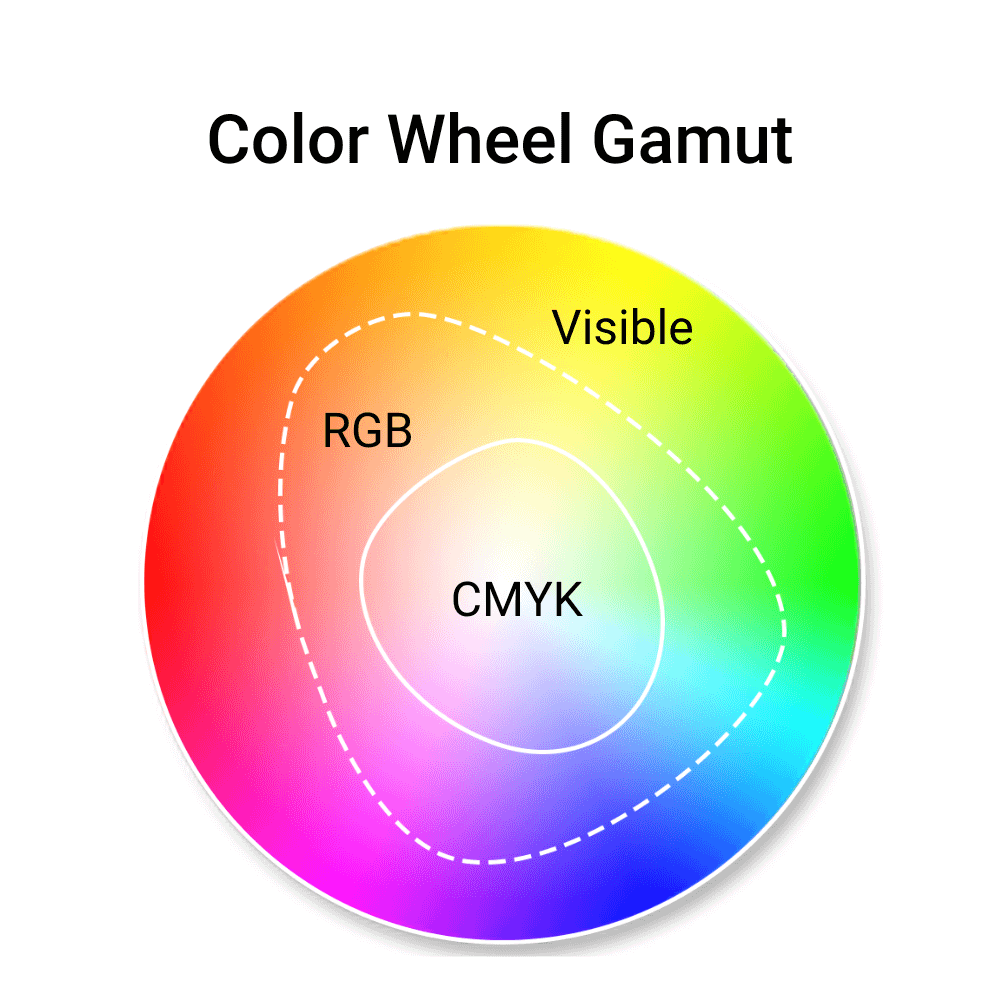
flowchart LR
    A(["New artwork"]) --> B{"Where will it live?"}
    B -->|"Screen, web, UI"| C["RGB mode - additive, vibrant on-screen"]
    B -->|"Print, press, packaging"| D["CMYK mode - subtractive, print-accurate"]
    C --> E(["Tailor colors to the output"])
    D --> E
Rule of thumb: design in the mode of your destination. Converting RGB to CMYK at the last moment can shift neon greens, electric blues and bright oranges - the colors RGB does best and CMYK ink cannot fully match.
2. Fill Color and the Fill Dialog (Shift+F11 / F11)
Fill Color applies a color or pattern inside an object. The Fill dialog - opened with Shift+F11 (or F11, which also hosts fountain fills) - provides access to the complete family of fill types, each suited to a different job:
The inside becomes fully transparent - "maybe with a visible outline" still framing the shape. Perfect for open line art and wireframes.
A single solid color - the everyday workhorse for flat design, icons and brand shapes.
A gradient - a smooth transition between two or more colors, from subtle tonal shifts to bold multi-color blends.
Bitmap or vector patterns tiled inside the shape - textures, geometric repeats and two-color pattern fills.
Predefined, procedurally generated textures such as clouds, water, stone and wood, adjustable via parameters.
Advanced print-oriented fills built from PostScript routines - specialty effects designed for high-end output devices.
Beyond the dialog, speed matters: with an object selected you can strip its fill in a heartbeat, and every fill you apply is remembered by the Document Palette (more on that in section 5). Fills also combine gracefully with the outline system below - a shape can carry a rich fountain fill and a hairline outline at the same time, each edited independently.
3. Outline Color and the Outline Pen Dialog (F12)
Outline Color defines the color of the object's border or stroke - the contour that gives a shape its crisp edge. The Outline Pen dialog (F12) is the full control room: it allows customization of stroke width, style (solid, dashed, dotted and more), corner shapes (mitre, round, bevel), end caps, and transparency, so a line can be exactly as loud or as quiet as the design needs.
Removing an outline is just as quick as styling one: designers can right-click the "No Color" swatch at the top of any palette, or simply press X with the object selected to clear the stroke while keeping the fill untouched. Together with the fill shortcuts, this makes the fill/outline pairing the most-tuned interaction loop in the whole application.
4. Gradient and Advanced Fill Tools
Gradients in CorelDRAW - also known as Fountain Fills - enable smooth transitions between two or more colors. Four canonical types cover virtually every blending need:
- Linear - colors flow along a straight line, the classic banner and background blend.
- Radial - colors spread in circles from a center point, ideal for glows, spheres and vignettes.
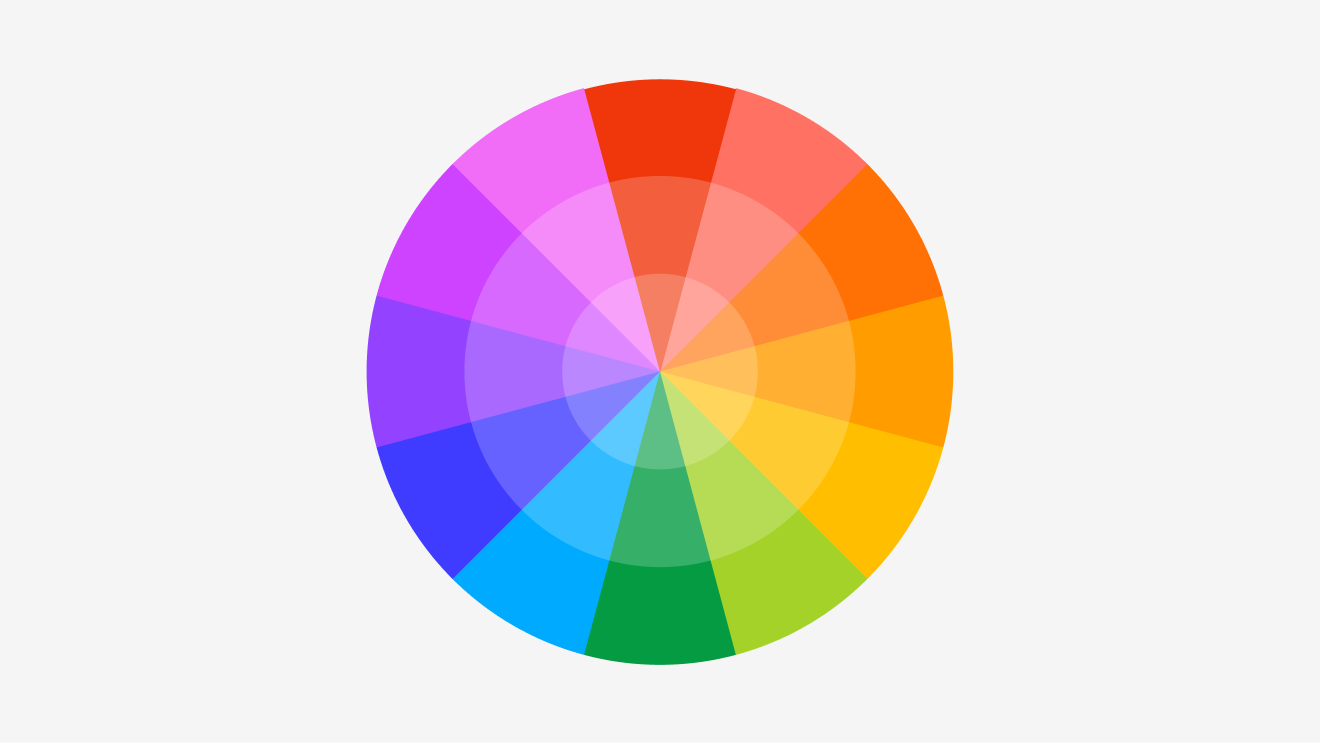
- Conical - a rotational blend in which colors transition around a cone shape, sweeping like a color wheel.
- Square - colors expand as concentric squares from the center for geometric, art-deco energy.
These gradients can be controlled three ways: via the Fountain Fill dialog (F11), from the Properties Bar, or interactively using the Gradient Tool (G). The interactive route is the most tactile - users drag handles directly on the object, add color stops, adjust transparency, and fine-tune the gradient's direction and midpoint in real time. Gradient nodes allow adding colors, adjusting position and tweaking transparency, so even complex multi-stop blends stay fully editable after the fact.
flowchart TD
    S(["Select an object"]) --> C{"Pick your controller"}
    C -->|"Gradient Tool"| G["Press G - drag handles on the canvas"]
    C -->|"Fountain Fill dialog"| F["Press F11"]
    C -->|"Properties Bar"| P["Set type, angle and stops inline"]
    G --> T["Choose Linear, Radial, Conical or Square"]
    F --> T
    P --> T
    T --> H["Drag handles - set direction, length and midpoint"]
    H --> A["Double-click the gradient path to add a color stop"]
    A --> N["On any node - add colors, adjust position and transparency"]
    N --> Z(["Smooth fountain fill applied"])
For more complex shading, three specialist tools take over. The Mesh Fill tool creates a grid of editable nodes across the object, allowing photorealistic transitions and nuanced lighting effects that simple two-point gradients cannot achieve. The Transparency Tool adds alpha fades and masking, letting objects dissolve into one another or reveal layers beneath. And the Smart Fill Tool detects enclosed areas and creates new filled objects from them - invaluable for layered compositions and logo construction, where the "fill" becomes a brand-new vector shape rather than a mere coat of paint.
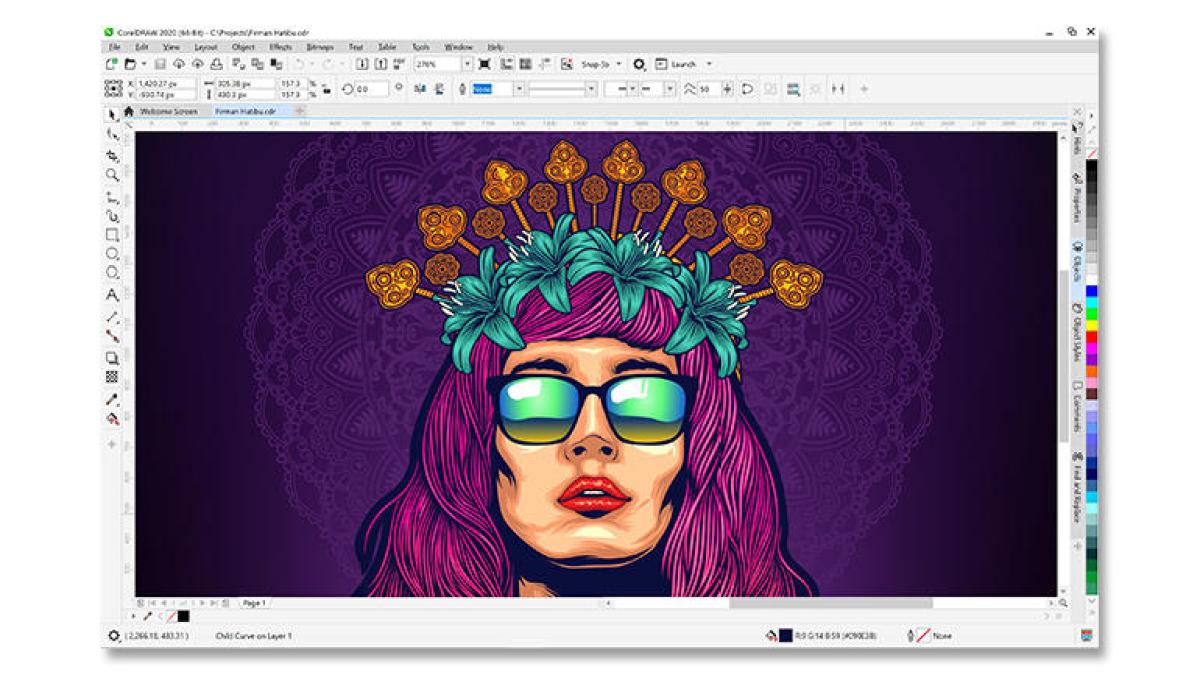
5. Color Palettes vs. Document Colors
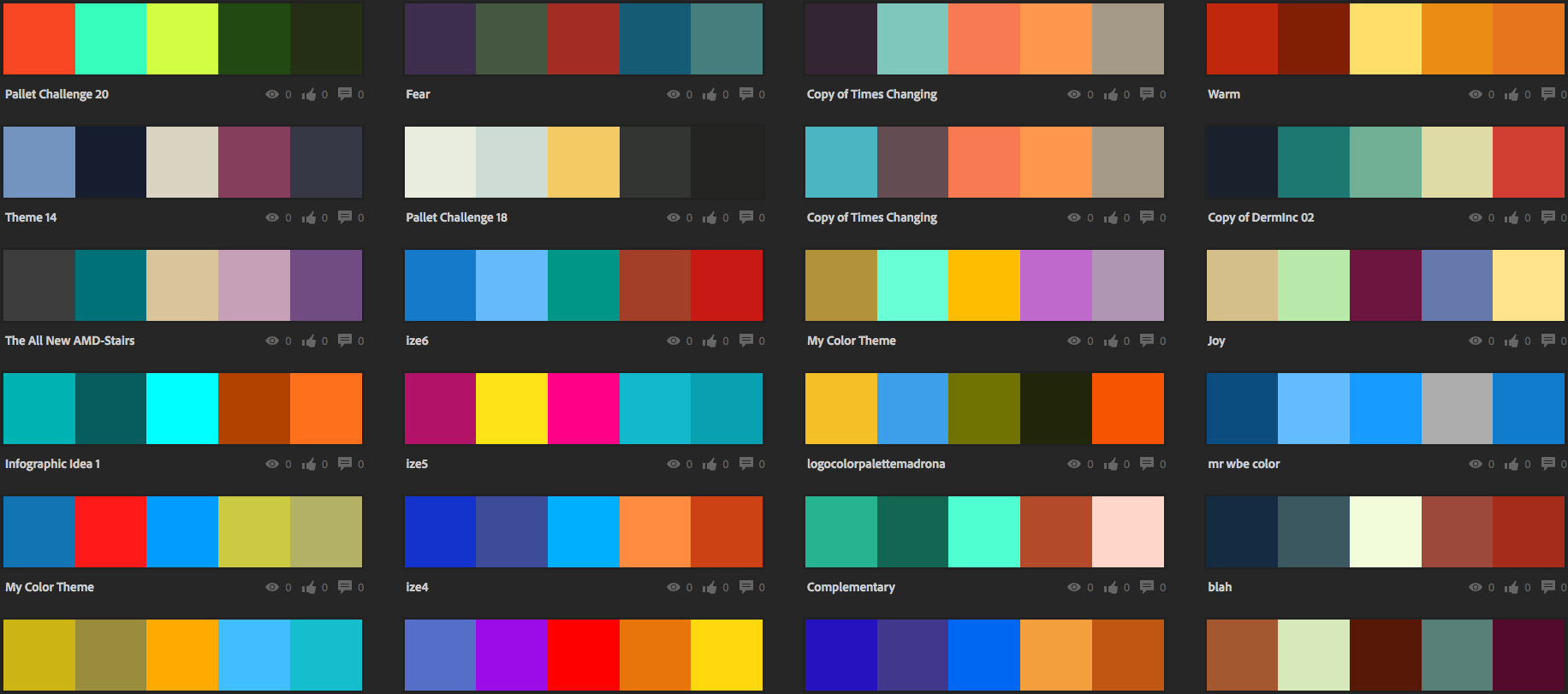
CorelDRAW includes a variety of static color palettes such as RGB, CMYK, Pantone and custom palettes, accessible from the right dock or via Window > Color Palettes. These palettes provide a broad range of colors for general use - the swatch libraries you reach for when exploring or matching a specified brand book.
In contrast, the Document Palette is dynamic: it updates automatically with every color applied in the current project. Located at the bottom-left of the interface, it ensures quick access to project-specific colors and is saved with the document, making it ideal for maintaining brand consistency across shared files. Designers can manually add or remove colors from the Document Palette, and disable auto-updates for tighter control when a project demands a fixed set of swatches.
| Feature | Color Palette | Document Palette |
|---|---|---|
| Purpose | General color sets (libraries) | Colors used in the current document |
| Static vs Dynamic | Mostly static, predefined palettes | Dynamic, updates with use |
| Location | Right side dock or via the Color Palettes menu | Bottom-left dock above the status bar |
| Customization | Create or load custom palettes manually | Auto-adds colors as you use them, or manual control |
| Saved with Document | No | Yes, saved with the document |
| Usefulness | Broad color range for all projects | Quick access to project colors |
⇄ Scroll inside the table - the header row and the first column stay frozen, just like the theme's freeze panes.
Brand-color tip: because the Document Palette is saved inside the file, opening a shared document puts every color the design uses one click away - no more hunting through libraries to rebuild a client's brand kit.
6. PowerClip Object Effect
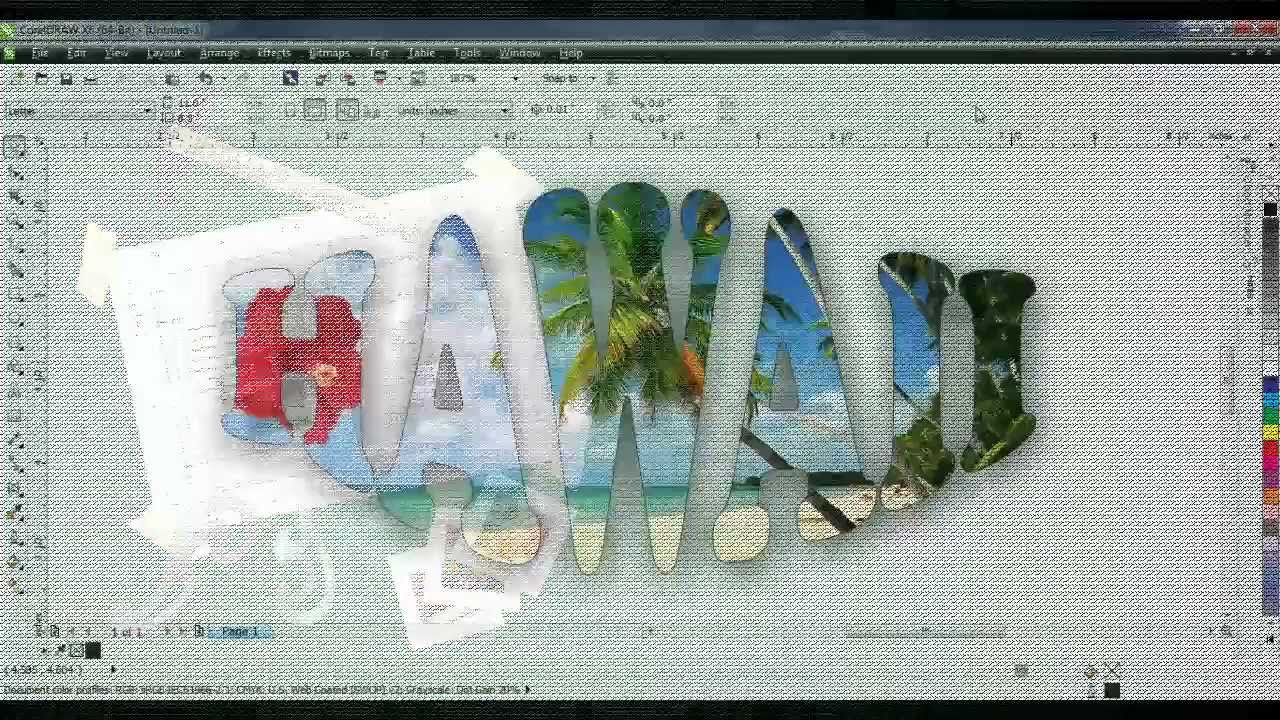
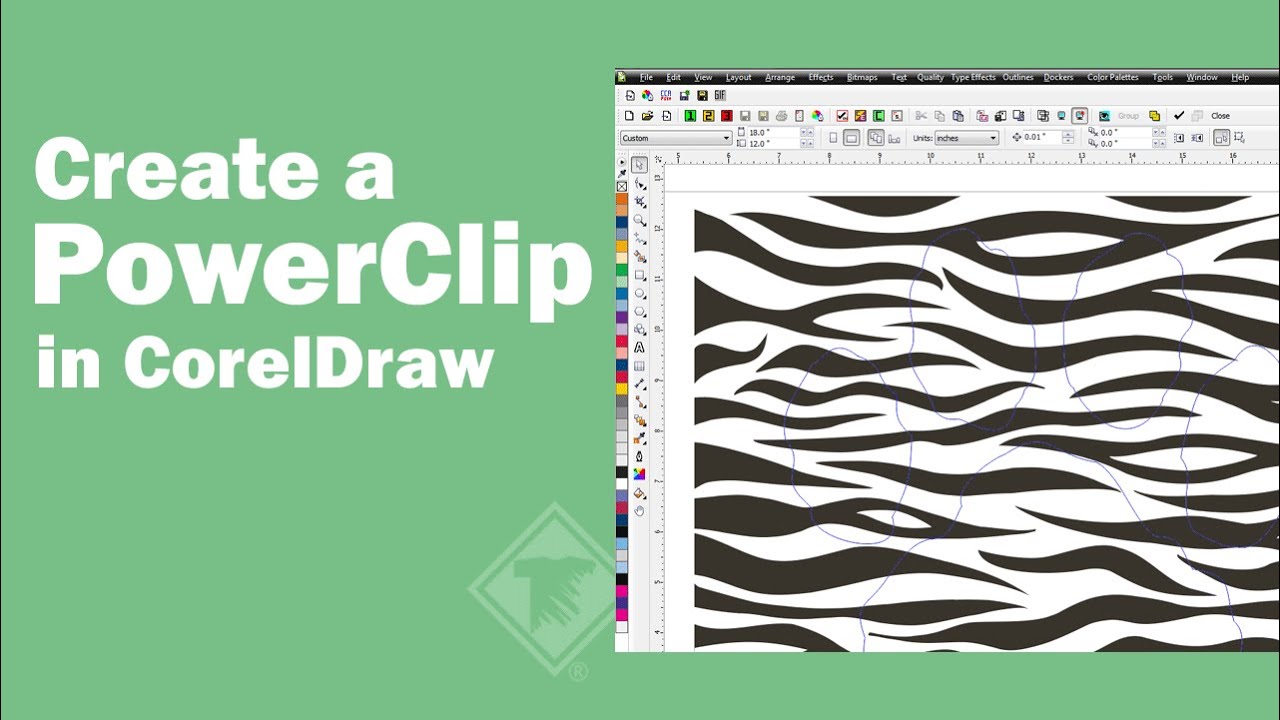
PowerClip is one of CorelDRAW's most powerful object effects, allowing users to place any vector or bitmap object inside another shape - effectively using the container as a mask. The workflow is deliberately simple: select the object to be clipped, go to Effects > PowerClip > Place Inside Container, and click the target shape. Once inside, the content can be edited, repositioned or resized using Edit PowerClip from the context menu. Designers can lock contents, toggle visibility, or extract them as needed.
PowerClip also supports nesting (a PowerClip within a PowerClip) and integrates seamlessly with transparency, gradients and bitmap effects. It is widely used for creating image-filled typography, dynamic layouts, and non-destructive masking in both print and digital workflows - the mask relationship stays live, so nothing is ever permanently cut away.
flowchart TD
    S(["Select the content object"]) --> M["Effects menu - PowerClip - Place Inside Container"]
    M --> K["Click the target container shape"]
    K --> W(["Content clipped - container acts as a mask"])
    W --> E{"Need to refine?"}
    E -->|"Yes"| R["Right-click - Edit PowerClip: move, resize or restyle the content"]
    R --> X["Object menu - PowerClip - Finish Editing This Level"]
    X --> O["Lock, extract or nest - then layer with transparency, gradients and bitmap effects"]
    E -->|"No"| O
    O --> Z(["Non-destructive mask ready"])
7. Color Tinting and Blending Techniques
CorelDRAW allows incremental tinting and shading using Ctrl+click on color swatches. Holding Ctrl and clicking a lighter color - or white - gradually lightens the existing fill, while clicking a darker color or black deepens it. This technique is perfect for subtle color blending and tonal adjustments: instead of re-picking a color from scratch, you nudge an existing one ten percent at a time until it sits exactly right in the composition.
Swatches are also draggable. Designers can drag a color swatch directly onto an object to fill it, or drop it into a gradient slider for quick edits to a fountain stop. And when the color you need already exists somewhere on screen, the Eyedropper Tool (shortcut: I) samples colors from anywhere on the canvas - or the entire application window - and applies them as fills or outlines, streamlining color matching across every element of the project.
8. Shortcuts and Workflow Efficiency
Here is a focused breakdown of shortcuts and workflow efficiency in CorelDRAW, specifically related to fill, outline and PowerClip operations. These are essential for speeding up your design process and mastering object styling and composition.
Basic actions
- Left-click on a color swatch → applies fill color to the selected object.
- Right-click on a color swatch → applies outline color to the selected object.
- X → removes fill from the selected object.
- Shift+X → removes outline from the selected object.
- Ctrl+Left-click on a swatch → adds a 10% tint of that color to the existing fill (incremental lightening).
- Ctrl+Right-click on a swatch → adds a 10% tint to the outline color.
- Shift+F11 → opens the Fill dialog for advanced fill options (Uniform, Fountain, Pattern, Texture, PostScript).
- F12 → opens the Outline Pen dialog to adjust stroke width, style, corners and transparency.
Interactive Fill Tool
- G → activates the Interactive Fill Tool.
- Drag handles on the object → adjust gradient direction, length and color stops.
- Double-click on the gradient path → add a new color stop.
- Delete (with a color stop selected) → removes that stop.
Basic PowerClip operations
- Effects > PowerClip > Place Inside Container → manually place an object inside another.
- Alt+Click on the container → enters Edit PowerClip mode.
- Ctrl+Click on the container → selects the PowerClip content without entering edit mode.
- Right-click on the PowerClip object → context menu with:
- Edit PowerClip
- Extract Contents
- Lock Contents
- Fit Contents Proportionally
- Center Contents
Editing & exiting
- Ctrl+X / Ctrl+V → cut and paste objects into PowerClip containers quickly.
- Ctrl+Z / Ctrl+Y → undo / redo PowerClip placement or edits.
- Double-click on the PowerClip container → shortcut to enter edit mode (in some versions).
- Object > PowerClip > Finish Editing This Level → exit edit mode when done.
- Drag & Drop: drag an object directly onto another to initiate PowerClip (if enabled in settings).
- Customize the right-click menu: add PowerClip options for faster access.
- Use the Document Palette: quickly reuse fill/outline colors already used in your project.
- Eyedropper Tool (I): sample and apply fill or outline from any object or screen area.
- Properties Bar: always check for context-sensitive controls - fill type, outline width, gradient angle and more.
9. Putting It All Together
Mastering CorelDRAW's color and object functionalities is the key to producing professional-grade graphics. Use the Properties Bar for quick edits, combine PowerClip with gradients and transparency for layered effects, and rely on the Document Palette for consistent branding. Always preview color modes based on the output media - RGB for digital, CMYK for print - and leverage the full suite of fill types, outline controls and transformation tools to create dynamic, scalable designs.
With practice, these features become second nature - empowering you to work faster and smarter.
The screenshots and illustrations embedded on this page were located through an automated web image search and are reproduced here for educational, illustrative purposes only. All artwork, screenshots, product names and trademarks remain the property of their respective owners; CorelDRAW is a registered trademark of Corel Corporation. No copyright infringement is intended - rights holders who would like an image credited differently or removed can contact the site administrator.
- YouTube - CorelDRAW workspace with fountain fill and Palettes docker; "HAWAII" PowerClip typography; "Create a PowerClip in CorelDRAW" tutorial (3 tutorial screenshots)
- Mixam - Color Wheel Gamut diagram (Visible / RGB / CMYK)
- Figma - twelve-segment color wheel
- ZDNET - CorelDRAW 2020 vector-portrait artwork
- Webflow - curated color-palette grid